
Exploring Amazon Nova Canvas - Tutorial Series Part 1: Simple Image GenerationBy Dzulkiflee Taib
While many of you have heard of the recent introduction of Amazon Nova by Amazon and its Amazon Nova Micro, Pro and Lite FMs, not many have heard of or explored the creative side of Amazon Nova, specifically Amazon Nova Canvas and Amazon Nova Reel.
This tutorial is the first in a series exploring Amazon Nova Canvas capabilities. In Part 1, we'll focus on simple text-to-image generation. Future tutorials in this series will cover:
- Part 2: Advanced Image Generation and Style Control
- Part 3: Image Editing and Manipulation
- Part 4: Working with Image Variations
- Part 5: Integrating Nova Canvas in Web Applications
Background - Amazon Nova
Late in 2024, Amazon released a plethora of Foundation Models that might have gone under the radar amidst the noise generated by launches of new products in the ever-fast-moving world of AI.
Amazon has grouped this latest set of new-generation state-of-the-art (SOTA) foundation models (FMs) under the Amazon Nova brand and released them exclusively on Amazon Bedrock. As some of you might know, Amazon Bedrock is a fully managed service that offers a choice of foundation models from AI Companies such as Anthropic, Meta, and Amazon itself via a single convenient API.
We can divide the FMs into two groups:
- Amazon Nova Micro, Amazon Nova Pro, and Amazon Nova Lite, which are understanding models that accept text, image, and video inputs and generate text output.
- Amazon Nova Canvas and Amazon Nova Reel, which are creative content generation models that accept text and image inputs and produce image or video outputs.
Simple Image Generation with Amazon Nova Canvas
In this first tutorial, we'll focus on the basics of generating images using Amazon Nova Canvas. We'll cover the essential features and parameters needed to create your first AI-generated images.
Amazon Nova Canvas Features and Capabilities
Amazon Nova Canvas offers several key features:
-
Text-to-Image Generation
- Create images from detailed text descriptions
- Support for negative prompts to specify unwanted elements
- Control over artistic style and image characteristics
-
Image Quality Controls
- Standard quality: Faster generation, suitable for prototyping
- Premium quality: Higher fidelity, better for final outputs
- Flexible dimensions supporting up to 4096x4096 pixels (within total pixel limits)
-
Generation Parameters
- CFG Scale (1-10): Controls how closely the image follows the prompt
- Seed value: Enables reproducible results
- Multiple image variations in a single request
Parameter Deep Dive
Let's understand the key parameters that control image generation:
Text Parameters
-
text: Your main prompt describing the desired image- Be specific about style, lighting, composition
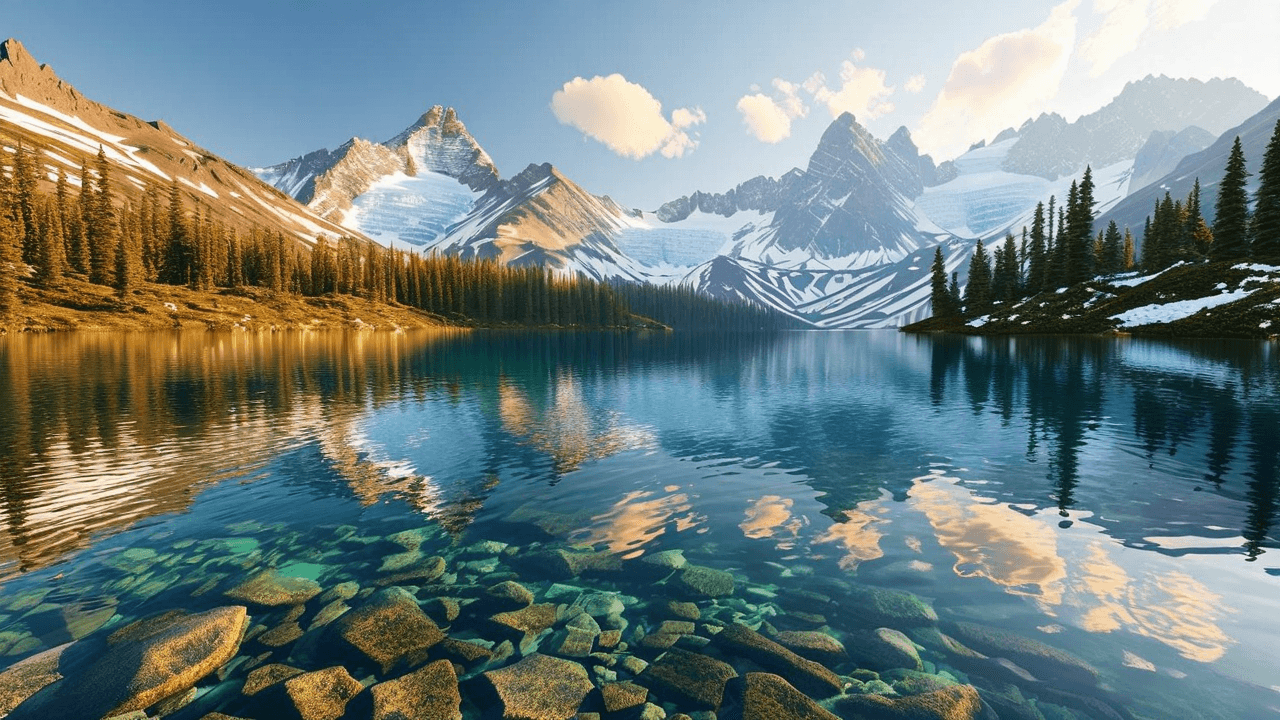
- Example: "A serene mountain lake at golden hour, with crystal clear water reflecting snow-capped peaks, photorealistic style"
-
negativeText: Elements to avoid in the generation- Helps refine the output by excluding unwanted elements
- Example: "blurry, dark, oversaturated, cartoon-style, artificial-looking"
Image Configuration
-
quality:- "standard": Faster generation, good for testing
- "premium": Higher quality, better details, slower generation
-
dimensions:widthandheight: 320 to 4096 pixels- Must be divisible by 16
- Aspect ratio must be between 1:4 and 4:1
- Total pixels must be less than 4,194,304
- Common ratios:
- 1:1 (1024x1024)
- 16:9 (1024x576)
- 4:3 (1024x768)
- Recommended starting point: 512x512 for testing
-
cfgScale: Classifier Free Guidance Scale- Range: 1.0 to 10.0
- Lower values (1-5): More creative, less strict to prompt
- Higher values (6-10): More literal interpretation of prompt
- Recommended: 7.0-8.0 for balanced results
-
seed:- Range: 0 to 858993459
- Same seed + same parameters = reproducible results
- Random seed for variation:
Math.floor(Math.random() * 858993459)
-
numberOfImages:- Range: 1 to 4 images per request
- Higher numbers increase processing time and cost
Best Practices
-
Prompt Engineering
- Be specific about artistic style (e.g., "photorealistic", "oil painting", "digital art")
- Include lighting details ("golden hour", "soft lighting", "dramatic shadows")
- Specify camera perspective ("close-up", "aerial view", "wide angle")
-
Parameter Optimization
- Start with standard quality for testing
- Use cfgScale 7.0-8.0 for balanced results
- Test different seeds when fine-tuning
- Consider aspect ratio for intended use
-
Performance Considerations
- Premium quality takes longer but provides better results
- Multiple images increase processing time
- Higher resolutions require more processing time
Implementation Tutorial
To follow along with this tutorial, make sure you have first set up Amazon Bedrock by following the steps at Getting started with Amazon Bedrock.
Clone the repository:
git clone https://github.com/goldzulu/amazonnovacanvas.git
The main main directory contain helper file BedrockImageGenerator.js which will help you generate images using Amazon Nova Canvas from your own script. You should be able to reuse this file in your project with some minor changes.
Understanding BedrockImageGenerator.js
Let's take a closer look at the BedrockImageGenerator.js file.
The BedrockImageGenerator class provides a streamlined interface for generating images using Amazon Bedrock's AI models. Let's look at its key components:
Core Configuration
BedrockImageGenerator.js:22-23
static DEFAULT_MODEL_ID = 'amazon.nova-canvas-v1:0';
static DEFAULT_REGION = 'us-east-1';
The class uses Amazon's Nova Canvas model and US East region by default. You can override these settings when instantiating the class.
Image Generation
BedrockImageGenerator.js:82-89
const command = new InvokeModelCommand({
    body: JSON.stringify(inferenceParams),
    modelId,
    accept: 'application/json',
    contentType: 'application/json'
});
The heart of the class lies in its generateImages method, which handles the AWS Bedrock API communication. It takes your image generation parameters and sends them to the Nova Canvas model.
Image Processing and Storage
BedrockImageGenerator.js:106-111
await Promise.all(responseBody.images.map((imageBase64, index) => {
    const imageBuffer = Buffer.from(imageBase64, 'base64');
    imagePaths.push(`${this.outputDirectory}/image_${index + 1}.png`);
    return this.saveFile(imageBuffer, `image_${index + 1}.png`, true);
}));
Generated images are automatically converted from base64 to PNG format and saved to the specified output directory. The class handles all the necessary file management and error handling behind the scenes.
This helper class simplifies the complex process of AI image generation into a few simple method calls, making it easy to integrate Amazon Nova Canvas into your applications.
Creating Your First Image Generator
Let's create a new file called GenerateImage.js that will use our BedrockImageGenerator class. We'll build this step by step, incorporating best practices for Nova Canvas.
Step 1: Basic Setup with Timestamped Output
First, let's create the file with proper ES module imports and a timestamp-based output directory for better organization:
import { BedrockImageGenerator } from './BedrockImageGenerator.js';
import path from 'path';
import { fileURLToPath } from 'url';

// Get current directory name in ES modules
const __filename = fileURLToPath(import.meta.url);
const __dirname = path.dirname(__filename);

// Create timestamped output directory for better organization
const timestamp = new Date().toISOString().replace(/[:.]/g, '-').slice(0, 19);
const outputDir = path.join(__dirname, 'output', timestamp);
Step 2: Initialize the Generator
Create an instance of our generator with the timestamped output directory:
const generator = new BedrockImageGenerator({
    outputDirectory: outputDir
});
Step 3: Define Comprehensive Generation Parameters
Let's create a detailed configuration that showcases Nova Canvas's capabilities:
const inferenceParams = {
    taskType: "TEXT_IMAGE",
    textToImageParams: {
        // Detailed prompt with style, lighting, and composition
        text: "A serene mountain lake at golden hour, with crystal clear water reflecting snow-capped peaks, photorealistic style, soft natural lighting, wide-angle view",
        // Negative prompt to refine the output
        negativeText: "blurry, oversaturated, cartoon-style, artificial-looking, dark shadows, distorted reflections"
    },
    imageGenerationConfig: {
        numberOfImages: 2,              // Generate two variations
        quality: "premium",             // Higher quality for final output
        width: 1280,                    // Maximum supported width
        height: 720,                    // 16:9 aspect ratio
        cfgScale: 7.5,                  // Balanced adherence to prompt
        seed: Math.floor(Math.random() * 858993459)  // Random seed for variation
    }
};
Step 4: Enhanced Image Generation with Error Handling
Create a robust async function with proper error handling:
async function generateImage() {
    try {
        console.log('Generating images with the following parameters:');
        console.log('- Prompt:', inferenceParams.textToImageParams.text);
        console.log('- Quality:', inferenceParams.imageGenerationConfig.quality);
        console.log('- Dimensions:', `${inferenceParams.imageGenerationConfig.width}x${inferenceParams.imageGenerationConfig.height}`);

        const imagePaths = await generator.generateImages(inferenceParams);

        console.log('\nGeneration successful!');
        console.log('Generated images saved to:');
        imagePaths.forEach(path => console.log(`- ${path}`));
    } catch (error) {
        console.error('Error generating images:', error.message);
        process.exit(1);
    }
}

// Self-executing async function with error handling
(async () => {
    try {
        await generateImage();
    } catch (error) {
        console.error('Fatal error:', error.message);
        process.exit(1);
    }
})();
Creating Your First Image Generator
Here's a complete implementation with best practices:
import { BedrockImageGenerator } from './BedrockImageGenerator.js';
import path from 'path';
import { fileURLToPath } from 'url';

const __filename = fileURLToPath(import.meta.url);
const __dirname = path.dirname(__filename);

const timestamp = new Date().toISOString().replace(/[:.]/g, '-').slice(0, 19);
const outputDir = path.join(__dirname, 'output', timestamp);

const generator = new BedrockImageGenerator({
    outputDirectory: outputDir
});

const inferenceParams = {
    taskType: "TEXT_IMAGE",
    textToImageParams: {
        text: "A serene mountain lake at golden hour, with crystal clear water reflecting snow-capped peaks, photorealistic style, soft natural lighting, wide-angle view",
        negativeText: "blurry, oversaturated, cartoon-style, artificial-looking, dark shadows, distorted reflections"
    },
    imageGenerationConfig: {
        numberOfImages: 2,
        quality: "premium",
        width: 1280,
        height: 720,
        cfgScale: 7.5,
        seed: Math.floor(Math.random() * 858993459)
    }
};

async function generateImage() {
    try {
        console.log('Generating images with the following parameters:');
        console.log('- Prompt:', inferenceParams.textToImageParams.text);
        console.log('- Quality:', inferenceParams.imageGenerationConfig.quality);
        console.log('- Dimensions:', `${inferenceParams.imageGenerationConfig.width}x${inferenceParams.imageGenerationConfig.height}`);

        const imagePaths = await generator.generateImages(inferenceParams);

        console.log('\nGeneration successful!');
        console.log('Generated images saved to:');
        imagePaths.forEach(path => console.log(`- ${path}`));
    } catch (error) {
        console.error('Error generating images:', error.message);
        process.exit(1);
    }
}

(async () => {
    try {
        await generateImage();
    } catch (error) {
        console.error('Fatal error:', error.message);
        process.exit(1);
    }
})();
Install the necessary packages:
npm install
Run the generator using:
node GenerateImage.js
Running and Experimenting
Parameter Variations
Here are some example parameter combinations for different use cases:
- Quick Prototype Testing:
const inferenceParams = {
    taskType: "TEXT_IMAGE",
    textToImageParams: {
        text: "Quick concept sketch of a modern building",
        negativeText: "detailed, complex, cluttered"
    },
    imageGenerationConfig: {
        numberOfImages: 1,
        quality: "standard",
        width: 512,
        height: 512,
        cfgScale: 5.0  // More creative interpretation
    }
};
- High-Quality Landscape:
const inferenceParams = {
    taskType: "TEXT_IMAGE",
    textToImageParams: {
        text: "Epic mountain landscape, dramatic sunset, ultra-detailed nature photography style, golden hour lighting",
        negativeText: "artificial, oversaturated, people, buildings"
    },
    imageGenerationConfig: {
        numberOfImages: 1,
        quality: "premium",
        width: 1280,
        height: 720,
        cfgScale: 8.5  // Strict adherence to prompt
    }
};
- Multiple Style Variations:
const inferenceParams = {
    taskType: "TEXT_IMAGE",
    textToImageParams: {
        text: "A cozy coffee shop interior, warm lighting",
        negativeText: "empty, dark, cluttered"
    },
    imageGenerationConfig: {
        numberOfImages: 4,
        quality: "standard",
        width: 1024,
        height: 1024,
        cfgScale: 7.0  // Balanced interpretation
    }
};
Conclusion
This tutorial has covered the basics of generating images with Amazon Nova Canvas. We've explored the key parameters, best practices, and provided a solid foundation for building more complex applications. Stay tuned for Part 2 where we'll dive into advanced image generation and style control techniques.